



How to turn a photo into a rap video
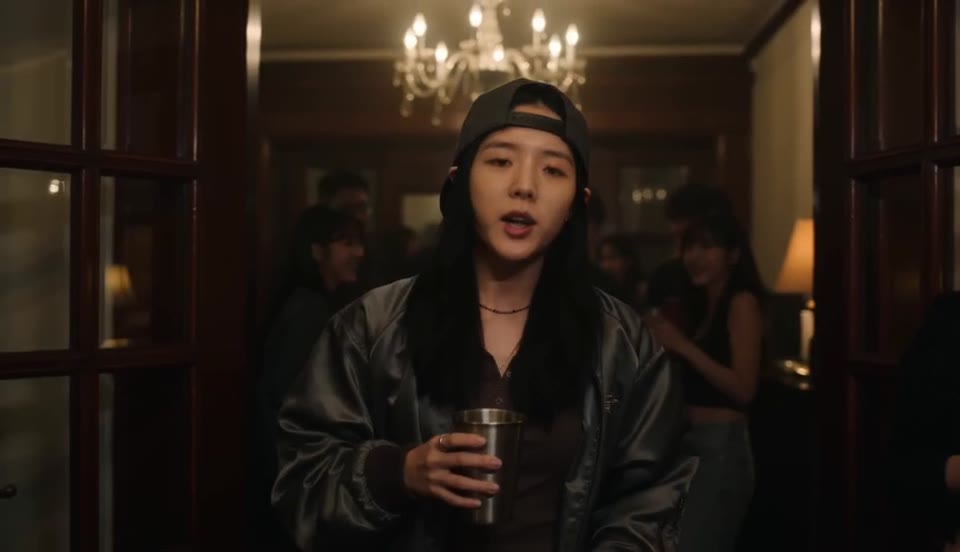
Upload 1 or 2 photos, write the scene, and generate a 5- to 15-second rap video with audio. Follow the after-hours party case.
Related caseAfter-hours party
Upload one or two photos you have rights to use, describe the performance, and the studio generates a new 5, 10 or 15 second clip with vocals and music. This walkthrough follows the after-hours party case, then points to the other published scenes when the setup changes.
What you get
If the clip is built around a roast or a fictional rivalry, start with the diss track generator. It provides a prompt for a short setup and punchline; the photo upload and video settings follow the same workflow below.
The studio uses Seedance 2.0 Fast. A finished video is 5, 10 or 15 seconds at 480p (720p available for 10 and 15 seconds), with generated audio. Choose landscape (16:9), portrait (9:16) or square (1:1).
The photo guides who is on screen. The prompt describes the room, the movement, the camera and the sound. Face, motion and timing can still differ from the photo. The result is a new performance, not an edit of an existing song.
There is no song or voice upload, and no timeline editor. You can describe lyrics and delivery in the prompt. Exact wording, a specific artist’s voice and precise lip-sync are not guaranteed.
Before you start
- Sign in. Each account gets one 5-second sample, shared across the site, including Hotel Lobby. It is free or a low-cost Trial depending on the current offer.
- Use photos you are allowed to use. One JPG or PNG per performer, up to 10 MB. Each side must be 301–5,999 pixels, with no more than 32 million pixels, and an aspect ratio greater than 0.4 and less than 2.5.
- One performer needs 1 photo. Two performers need 2 separate photos. A single photo of two people does not count as the pair.
- The sample is only 5 seconds long. After purchase, return to the studio to generate a new 10- or 15-second version from the same photos and brief; visuals and audio may differ. Start while the sample and photos are still available within seven days. Starter is a one-time purchase, currently US$6.99 for 10 credits, and it does not renew. Confirm the current price on the pricing page, where monthly and annual plans are listed. A 15-second 480p full version of your free sample uses those 10 credits.
- Download an unlocked video within 7 days of completion. Purchased credits expire at the end of the billing period for plans and one year after purchase for Starter; this is separate from video storage.
- The photo stays in the browser until you click Generate. It is then uploaded for review and generation. Our upload copy is scheduled for deletion after 7 days.
Follow a real case
The after-hours party case is one photo, 15 seconds, 16:9 and 480p. Its page shows the reference photo, the prompt that was actually used, and the generated video.
When you want a different setup, start from the matching case instead of a blank prompt:
- Studio duo — two people, one microphone, a seamless orange background. Two photos.
- Hotel Lobby — the same duo setup, with alternate prompts on that page.
- Mansion walk — one person moving through a house. One photo.
- Cold room freestyle — one person in a walk-in cold room. The published prompt is in English.
- Street freestyle — one person, vertical 9:16, a crowded entrance at night.
Every case page includes the reference image, the prompt used for that video, and a studio already filled with those settings. The examples index lists all five.
1. Open the studio and pick a scene
Open the studio. The top row is the published cases. Choosing one fills the performer count, the prompt, the frame and the duration. You still replace the photos with your own and can edit the prompt.
Under Performers, choose One performer or Two performers. Switching this only replaces the prompt when the text is still the generic sample.
2. Add the photos
Add one JPG or PNG for one performer. For two performers, add the left person and the right person as separate files. The labels on screen are the left and right performers.
The preview stays on your device until you generate. Use a clear view of the face, and clothing you want the clip to keep. Photos and prompts must pass content review before generation starts. If a photo is rejected, choose another image you have rights to use.
3. Write the scene, the movement and the sound
The prompt needs 10–1,200 characters. Cover four things:
- Who the photo is, and that their face, hair and build should stay consistent.
- The room, the light, and clothing if it matters.
- What they do from start to end: where they look, how they move, and how the camera moves. Keep it one continuous setup.
- The audio: original rap vocals, bass and drums. Ask for no source song, artist voice, existing footage, subtitles or watermark.
A short solo shape looks like this:
15-second solo rap. Image 1 is the only performer; keep the face, hair and build. A dim warm room, one practical light. They face the camera, nod to the beat, and gesture with one hand, then turn slightly and come back. Medium shot, slow move, same room throughout. Original rap vocals, deep bass and drums. No source song, artist voice, existing footage, subtitles or watermark.
The party case is the full version of that shape. Copy it from the case page with Use this prompt, then change the room, the clothes and the actions so they match your photo. Do not ask for a named artist’s voice or a commercial recording.
Use example prompt replaces the text with a generic sample. Skip it after you have loaded a case, unless you want to discard that case prompt.
The party, studio duo, mansion and street prompts are written in Chinese. The cold-room prompt is written in English. Edit in the language you can revise accurately.
4. Set the frame and the length
Choose 16:9, 9:16 or 1:1, then 5, 10 or 15 seconds. Output is 480p, or 720p for 10 and 15 seconds. A case preset sets these for you; change them only when you want a different frame. After the sample, 480p uses 4, 7 or 10 credits by length; 720p uses 14 or 20.
Generation can take several minutes. You can leave and return to the same task. If status checks pause, use the saved task instead of starting another video.
5. Preview and download
Sign in to generate a 5-second sample. Purchase, then return to the studio for a newly generated full version. Its visuals and audio may differ from the sample, and it takes additional time to generate.
If a generation fails and that failure is confirmed, the reserved credits are returned. That is not a cash refund. Change the photo or the prompt and try again. Payment questions go through the refund policy.
Save the file within 7 days. After that window, the video is no longer kept for download.
Make the party version
- Open the after-hours party case and watch the result next to the reference photo.
- Choose Use this prompt. That loads one performer, 15 seconds, 16:9 and the prompt used for the published video.
- Replace the reference with your photo.
- Edit the room and the actions so they match your photo, then generate.
To start without a case, open the studio, keep One performer, and write the prompt yourself. For two people, use studio duo or Hotel Lobby and upload two photos.